
How to Update the Library Hours
How to Update the Library Hours
| Website Documentation / How To- Ensure you are logged into Drupal: https://www.tyndale.ca/user
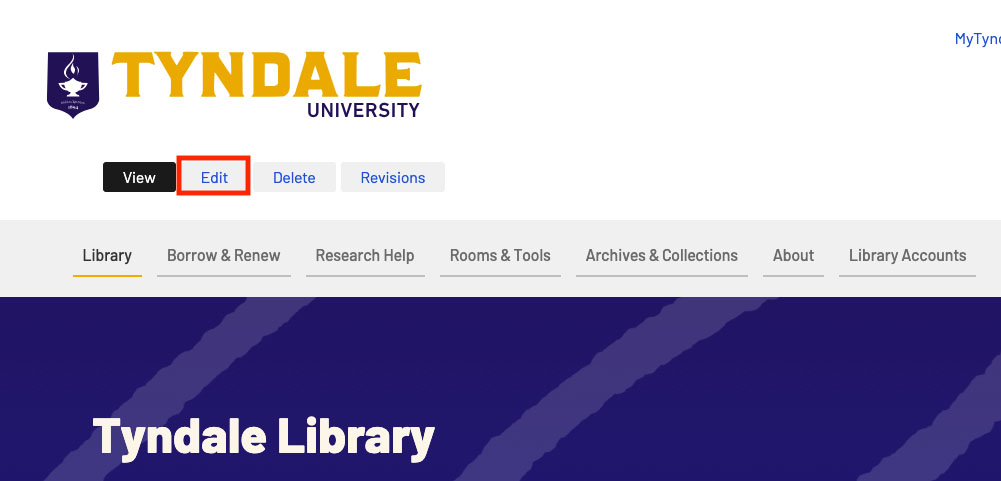
- Navigate to the main Library page: https://www.tyndale.ca/library
- Select the edit button to begin editing the Library page.
- The Open Hours component can be found in the first 8/4 Section. (Specifically in the 4 section in this case)
For more information on components view: Component-based Page Building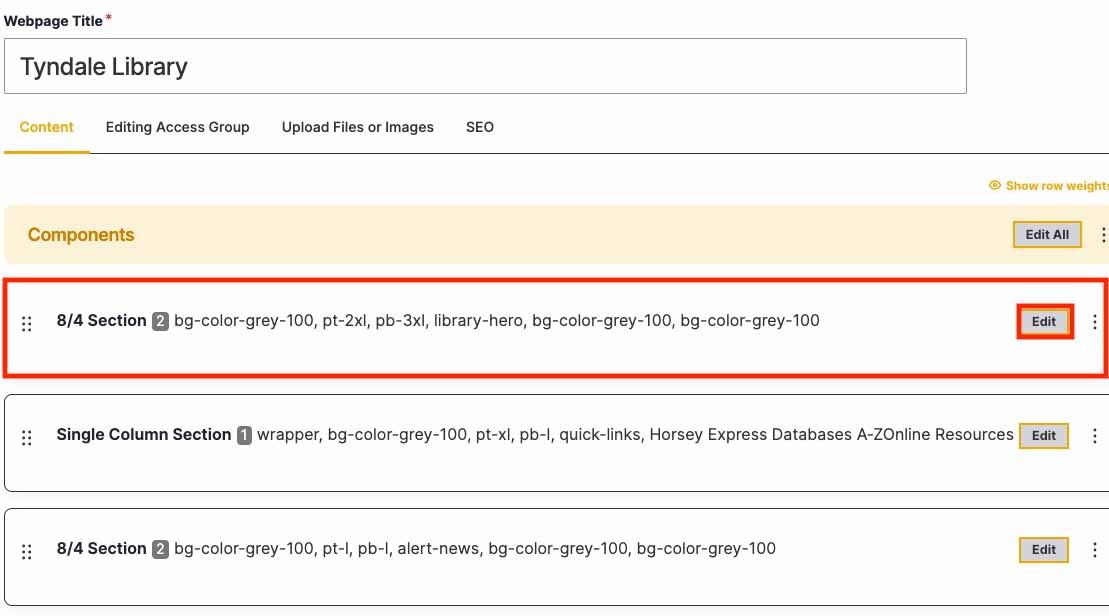
- Each set of hours (J. William Horsey & ABBA Resource Centre) has their own component.
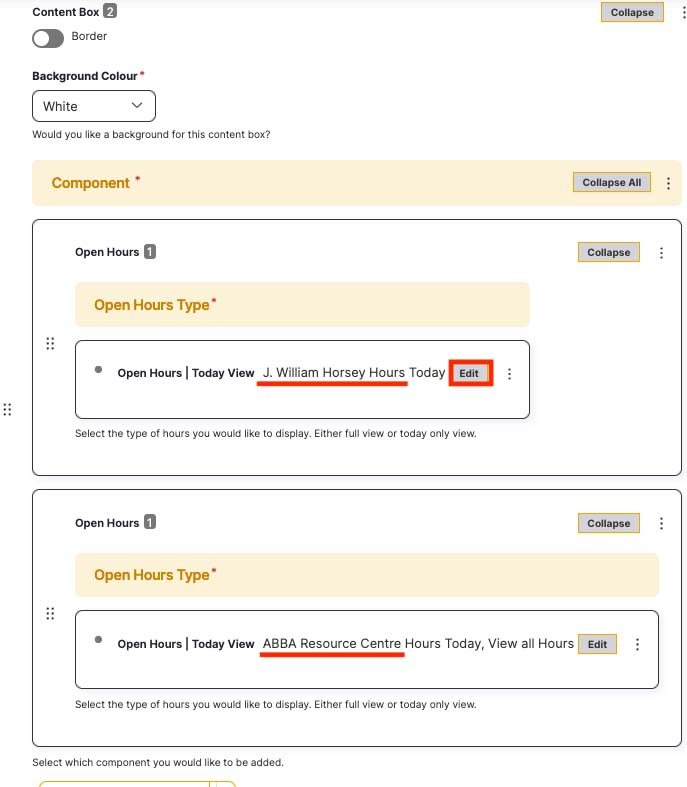
- Once the desired set of Hours has been selected there are a few options:
- Editing the hours in the Open Hours tab will set the default hours.
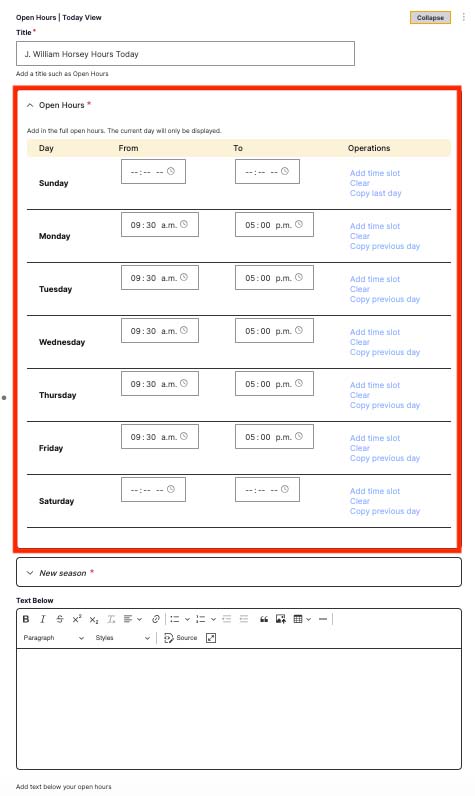
- Hours for a temporary time may be added in the New season tab.
These hours will temporarily override the default hours depending on the dates set.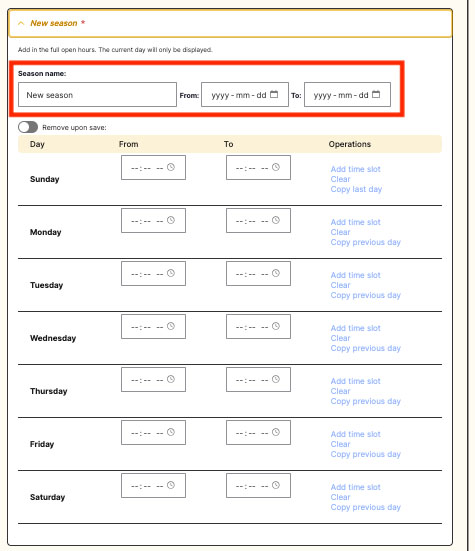
If you need to remove a season, select the Remove upon save flag.
Once the page is saved that season will be removed.
- Editing the hours in the Open Hours tab will set the default hours.
Keep in mind, Library times are also displayed on: https://www.tyndale.ca/library/hours Be sure to keep both up-to-date with one another.
For more information on updating components view: Component-based Page Building
