
Page Numbers, Headers, and Running Heads
Inserting Page Numbers
Downloaded Word
- Click the “Insert” tab.
- Click the “Page Number” button. Look through the available options to find the correct position for your page number. Most citation styles (eg, APA, MLA, Chicago) require a page number in the top right corner of each page (“Plain Number 3”).
- In some citation styles, such as MLA, you must type your last name immediately to the left of the page number.
- Note: Alternatively, double-click the top of the document to open the header and use the shortcut Alt + Shift + P (Windows) or Cmd + Shift + P (Mac) to insert a page number.

Online Word
- Click the “Insert” tab.
- Click the “Page Numbers” button. Look through the available options to find the correct position for your page number. Most citation styles (eg, APA, MLA, Chicago) require a page number in the top right corner of each page (the top right option in the menu).
- In some citation styles, such as MLA, you must type your last name immediately to the left of the page number.


Inserting Headers
Downloaded Word
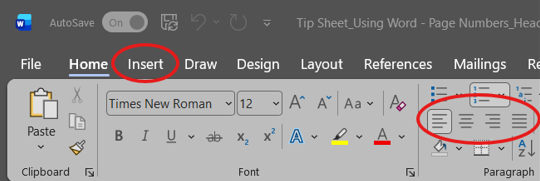
- Click the “Insert” tab.
- Click the “Header” button (two buttons to the left of the “Page Number” button) to insert text at the top of your page that will also appear to subsequent pages of your document. Choose “Blank Header”. Alternatively, you can double-click at the top of your document.
-
Note: To align the text in your header to the left, right, or center, highlight the text with your mouse, click the “Home” tab, then click the desired option: “Align Left,” “Center,” or “Align Right.”
-
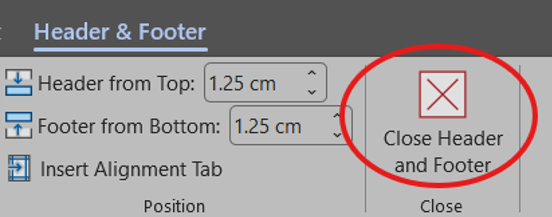
To return to the rest of your document, click the “Close Header & Footer” button in the Header & Footer tab or double-click anywhere else in your document.
Online Word
- Click the “Insert” tab.
- Click the “Header & Footer” button (to the left of the “Page Numbers” button) to open up the header in your document.
-
Enter your text in the desired alignment for your header.

- To return to the rest of your document, click the “Close Preview” button in the Header & Footer tab or double-click anywhere else in your document.

Inserting a Running Head (for APA, if requested)
Downloaded Word
- Follow the instructions for inserting a page number in the top right corner of the page.
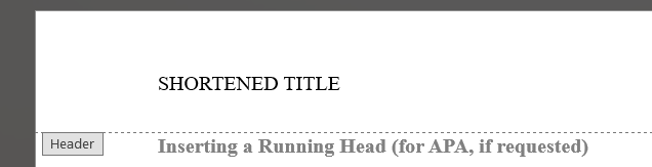
- Immediately to the left of the page number, type a shortened version of your title in all caps (capital letters).
- With your cursor between the title and the page number, press the tab key (on your keyboard) twice. Your running head should now be aligned to the left of the page, while your page number remains aligned to the right.
- Click the “Close Header and Footer” button (or double click anywhere on your document) when you are finished.
Online Word
- Follow the instructions for inserting a page number in the top right corner of the page.
- Click the leftmost box in the header.
- Type a shortened version of your title in all caps.
- Click the “Close Preview” button (or double click anywhere on your document) when you are finished.


