
Formatting, Indentation, and Keyboard Shortcuts
Font and Size
Downloaded Word
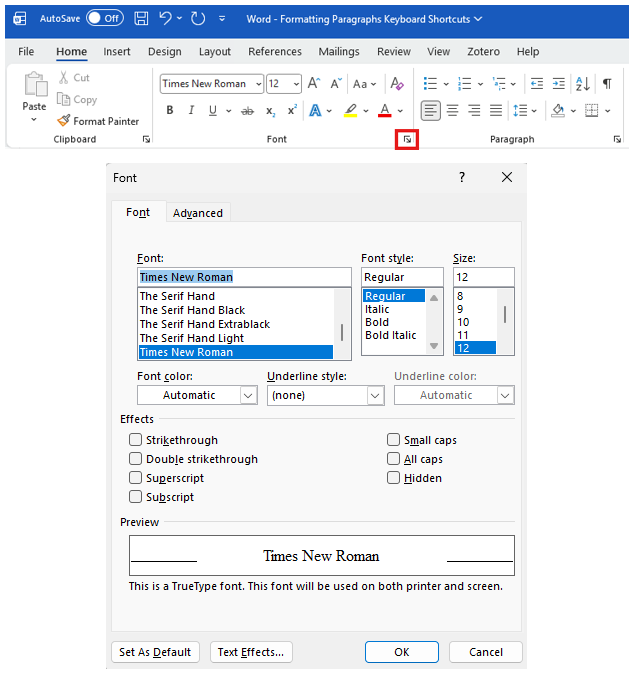
- Highlight the text you want to change by clicking and dragging over the text.
- Click the “Home” tab.
- Click the arrows to the right of the font and size dropdowns. Either scroll to find your desired font and size or type them in using your keyboard.
- Note: to keep these settings as the default formatting for all documents, click the box/arrow button in the right corner of the “Font” section. Then click “Set as Default” and click the “All documents based on the Normal template?” option.
- NOTE: This feature is only available on the downloaded version of Word.
Online Word
- Highlight the text you want to change by clicking and dragging over the text.
- Click the “Home” tab.
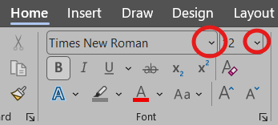
- Click the arrows to the right of the font and size dropdowns. Either scroll to find your desired font and size or type them in using your keyboard.

Indenting
NOTE: In academic papers, you should indent the first sentence of every paragraph.
Downloaded & Online Word
- Click immediately before the first word of the paragraph you want to indent.
- Press the “Tab” key on your keyboard to indent.
- Do NOT leave a blank line between paragraphs. Your spacing should be consistent throughout your paper. The indent shows that you have started a new paragraph.
Line Spacing and Spacing After Paragraphs
Downloaded & Online Word
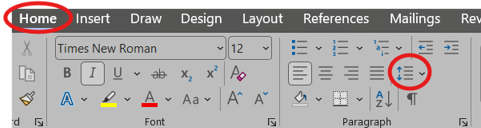
- Click the “Home tab.”
-
Click the spacing button and choose your desired spacing. Double (2.0) spacing is standard for most papers.
-
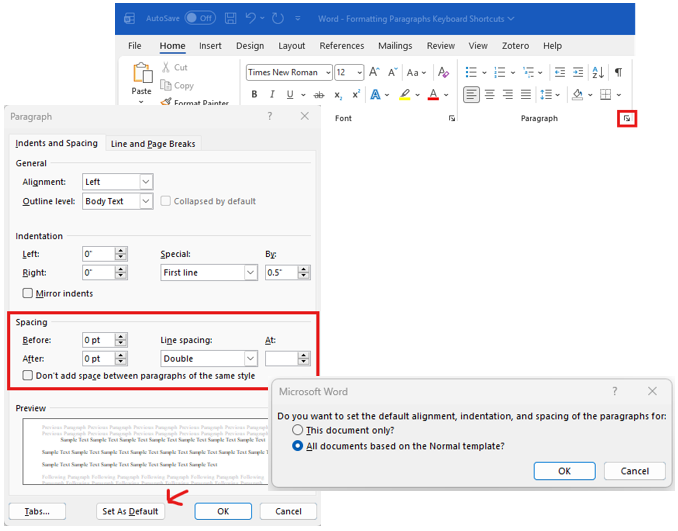
Note: In academic papers, there should be no additional line spacing after paragraphs. To remove the default spacing in Microsoft Word, click on the little box/arrow button in the “Paragraph” section and set “Before” and “After to “0 pt.” Then click “Set as Default” and choose the “All documents based on the normal template?” option.
Keyboard Shortcuts
| Function | PC | Mac |
| Copy | Ctrl + C | Command + C |
| Cut | Ctrl + X | Command + X |
| Paste | Ctrl + V | Command + V |
| Undo | Ctrl + Z | Command + Z |
| Select All | Ctrl + A | Command + A |
| Bold | Ctrl + B | Command + B |
| Itaclis | Ctrl + I | Command + I |
| Find | Ctrl + F | Command + F |
| Save Document | Ctrl + S | Command + S |
| Ctrl + P | Command + P |

